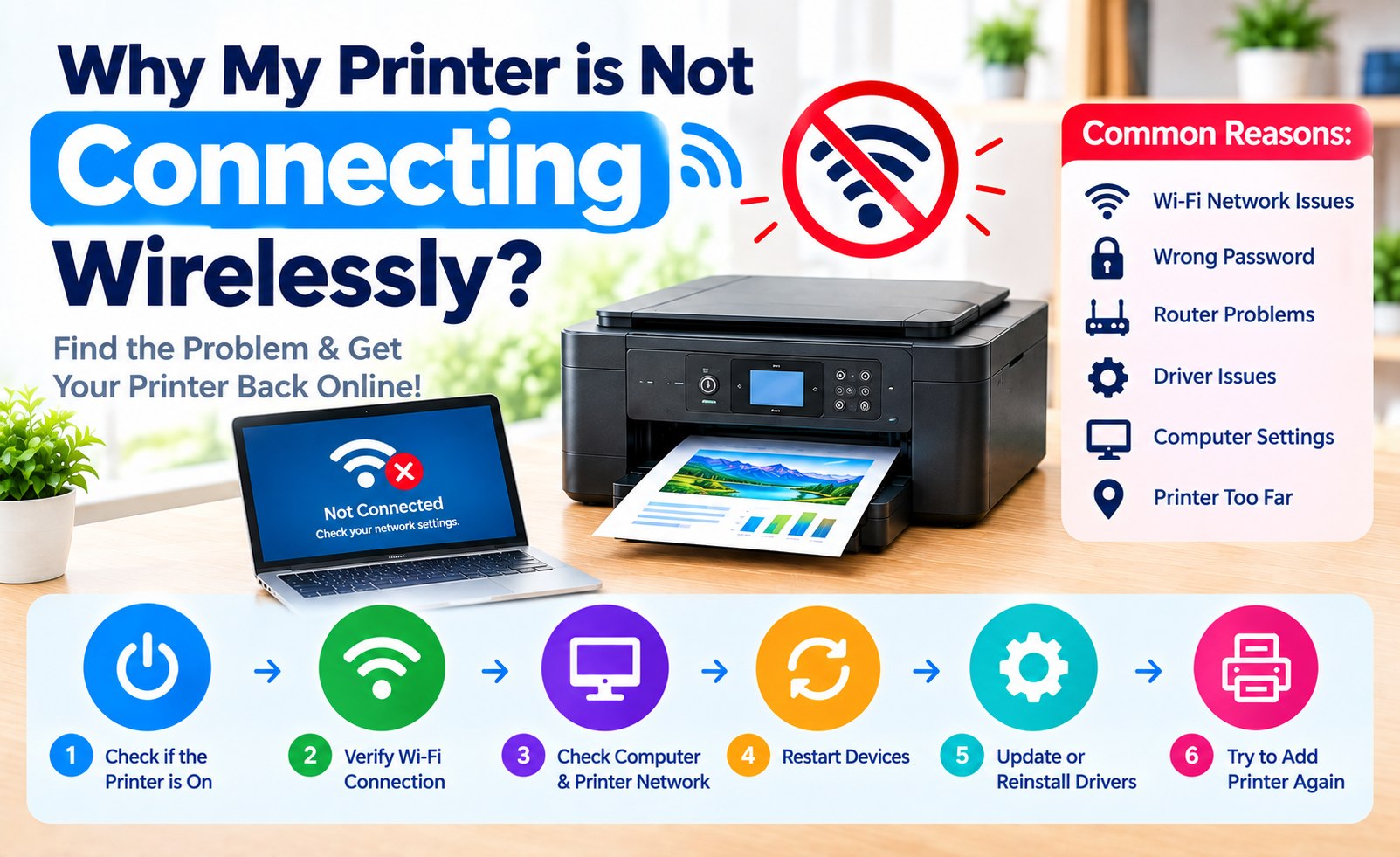
Why Is My Printer Not Connecting to My Computer Wirelessly?
A wireless printer can make everyday printing much easier, but connection problems can prevent your computer from finding or communicating with the printer. If the printer is powered on but does not appear on your computer, the cause may be related to the Wi-Fi network, printer settings, computer configuration, or printer software.
Sometimes a printer is connected to Wi-Fi but appears offline on the computer. In other cases, the computer may fail to discover the printer during installation. The good news is that many wireless printer problems can be narrowed down with a few systematic checks.
This guide explains common reasons a printer is not connecting wirelessly and walks through practical troubleshooting steps for Windows and Mac computers.
Common Reasons a Wireless Printer Will Not Connect
Before changing advanced settings, check the most likely causes of a wireless printer connection problem:
- The printer and computer are connected to different Wi-Fi networks.
- Wi-Fi is disabled or disconnected on the printer.
- The wireless password was entered incorrectly.
- The printer is too far from the router or has a weak signal.
- The printer is showing an offline or unavailable status.
- The correct printer driver or setup software is missing.
- An old printer installation is interfering with the new connection.
- A guest network, VPN, or other network configuration is blocking local device discovery.
- The printer has an outdated or incorrect saved network configuration.
Step 1: Make Sure the Printer Is Turned On
Start with the simplest check. Make sure the printer is connected to power and has finished starting up. Check its display or indicator lights for warning messages, error symbols, or network information.
If the printer reports a paper, ink, toner, or hardware error, resolve that condition first. A printer may remain unavailable while an important error is active.
Step 2: Check the Printer's Wi-Fi Connection
Your printer needs an active wireless connection before a computer can communicate with it over the network. Open the printer's network or wireless settings and review the current connection status.
Depending on the model, the relevant menu may be called Wireless Settings, Wi-Fi Setup, Network Settings, Network Status, WLAN Settings, or Wireless Setup Wizard.
Confirm that the printer is connected to the intended Wi-Fi network. If it is disconnected, select the network again and carefully enter the wireless password.
Check the printer's Wi-Fi network before changing drivers or computer settings. A network mismatch is one of the first connection problems to rule out.
Wireless Printer Tip
Troubleshooting Guide
Step 3: Confirm Your Computer and Printer Use the Same Network
One of the most common causes of wireless printer problems is a network mismatch. Your computer and printer should normally be connected to the same local network when you are trying to add or use the printer.
Check the Wi-Fi network shown on your computer and compare it with the network displayed in the printer's wireless settings. If they are different, connect both devices to the appropriate network and try adding the printer again.
Step 4: Restart the Printer, Computer, and Router
A restart can clear temporary communication problems. Turn off the printer, restart the router if necessary, and then restart the computer.
- Turn off the printer.
- Restart the wireless router.
- Wait for the router to reconnect to the network.
- Turn the printer back on.
- Restart the computer.
- Try searching for the printer again.
Step 5: Check the Printer's Wi-Fi Signal
If the printer is located far from the router, its wireless signal may be weak or unstable. Move the printer closer to the router temporarily and check whether the computer can detect it.
Avoid placing the printer inside an enclosed cabinet or behind large objects that may interfere with the wireless signal. If the connection improves after moving the printer, signal strength may be part of the problem.
Step 6: Check Whether the Printer Is Offline
A printer can be connected to Wi-Fi but still appear offline on the computer. Open your printer settings and check the current status.
Look for messages such as Offline, Not available, Driver unavailable, Printer not responding, or Needs attention. If the printer is listed as offline, verify the network connection and restart the printer before trying again.
Step 7: Make Sure the Correct Printer Driver Is Installed
A network connection does not always complete printer installation. Your computer may also require the correct printer driver or setup software to communicate with the device and use its available features.
An incorrect, incomplete, outdated, or incompatible driver can result in printer detection failures, offline status, missing features, or print jobs that remain pending.
Use the software intended for your exact printer model and operating system. Avoid installing a driver designed for a different model simply because the printer brand is the same.
Step 8: Remove the Printer and Add It Again
If the printer was previously installed but no longer connects, an old configuration may be interfering with the current connection.
Open your computer's printer settings, remove the existing printer entry, and then use the option to add a printer. Allow the computer to search for available devices and select the correct printer when it appears.
Re-adding the printer creates a fresh configuration and can resolve problems caused by an outdated printer entry.
Step 9: Check Your Computer's Wi-Fi Connection
The issue may be with the computer rather than the printer. Check that the computer has a stable Wi-Fi connection by opening a website or another network application.
If the computer frequently disconnects from Wi-Fi, resolve that network problem first. Also make sure the computer has not connected to a guest network or another nearby wireless network.
Step 10: Check Windows Printer Settings
On Windows, open the printer settings and check whether the device appears in the available printer list.
- Open Windows Settings.
- Go to Bluetooth & Devices.
- Select Printers & Scanners.
- Find your printer in the list.
- Open its settings and review the current status.
- Remove and re-add the printer if necessary.
Step 11: Check Mac Printer Settings
Mac users can also remove and re-add a wireless printer. Open System Settings and go to the printer section to see whether the printer is listed.
If the printer is missing, choose the option to add a printer and allow macOS to search for available devices. If the printer is listed but will not print, removing and adding it again can refresh its configuration.
Step 12: Check for VPN or Network Configuration Issues
Some network configurations can prevent a computer from discovering devices on the local network. If you use a VPN, temporarily disconnect from it and check the printer connection again.
Also check whether the computer is connected to a guest Wi-Fi network. Guest networks may restrict communication between devices connected to the same router.
Step 13: Reset the Printer's Network Settings
If the printer still cannot connect, its saved wireless configuration may need to be cleared. Many printers include a network reset or restore network settings option.
After a network reset, you will generally need to connect the printer to Wi-Fi again. Make sure you know your wireless network name and password before resetting the network configuration.
Step 14: Check the Printer's Network Information
Some wireless printer problems are related to the network address assigned to the printer. If your printer can print a network configuration or network status report, review the information shown there.
If the printer has no valid network address or repeatedly loses its network connection, the problem may be related to the wireless network rather than the printer driver.
What to Do If the Printer Connects but Will Not Print
If the computer successfully detects the printer but print jobs do not complete, check the following:
- Make sure the correct printer is selected.
- Check whether the printer is set as the default printer.
- Look for an error displayed on the printer.
- Check paper, ink, or toner status.
- Look for a stuck print job in the queue.
- Confirm that the correct printer driver is installed.
- Make sure the printer remains connected to Wi-Fi.
Why Does My Computer Not Detect My Wireless Printer?
If your computer cannot find the printer at all, begin with the network connection. Make sure the printer is connected to Wi-Fi and that the computer is using the same network.
Restart both devices and search for the printer again. If it remains invisible, check the printer's wireless settings, install the appropriate printer software, or remove and re-add the printer.
Why Does My Wireless Printer Keep Disconnecting?
A printer that repeatedly loses its wireless connection may have an unstable network connection. Possible factors include a weak Wi-Fi signal, distance from the router, router problems, network changes, temporary software issues, or wireless interference.
Move the printer closer to the router and reconnect it. If the problem continues, restart the router and consider resetting the printer's network settings.
Quick Wireless Printer Troubleshooting Checklist
- Make sure the printer is powered on.
- Confirm that Wi-Fi is enabled on the printer.
- Check the printer's wireless network name.
- Confirm that the computer uses the same network.
- Verify the Wi-Fi password.
- Restart the printer and computer.
- Restart the router if necessary.
- Check the printer's Wi-Fi signal.
- Look for an offline status.
- Install the correct printer driver.
- Remove and re-add the printer.
- Reset network settings if necessary.
When Should You Reinstall the Printer?
Consider reinstalling the printer when it was previously working but has disappeared, the computer detects it incorrectly, the printer remains offline, the driver is unavailable, or the Wi-Fi network name or password has changed.
Removing the old printer entry and completing a fresh installation can resolve configuration problems that are difficult to identify manually.
Frequently Asked Questions About Wireless Printer Connections
Why is my printer connected to Wi-Fi but not my computer?
A printer can be connected to Wi-Fi while still being unavailable to a particular computer. Check that both devices are using the same network, then verify the printer settings and driver installation.
Why can't Windows find my wireless printer?
Windows may fail to discover a printer because the devices are on different networks, the printer is offline, the network configuration restricts device discovery, or the required printer software is not installed correctly.
Why is my wireless printer offline?
An offline printer may have lost its Wi-Fi connection, may be connected to a different network, or may have a communication or driver problem. Restarting the printer and checking its network status is a useful first step.
Do I need a printer driver for wireless printing?
Many printers require appropriate software or drivers so the computer can communicate with the printer and access its available features. The required software depends on the printer model and operating system.
Can I connect my printer without a USB cable?
Printers with wireless networking capabilities can generally be configured over Wi-Fi instead of using a USB connection. The printer and computer normally need to be connected to the appropriate local network.
Should I reset my printer's network settings?
A network reset can be useful when the printer has an incorrect or outdated Wi-Fi configuration. It will usually require you to connect the printer to the wireless network again afterward.
Conclusion
A printer that will not connect wirelessly to a computer can usually be traced to the network connection, printer configuration, computer settings, or printer software.
Start with the basics: make sure the printer is powered on, confirm its Wi-Fi connection, check that the computer and printer use the same network, and restart the devices. If the printer still cannot be detected, check the printer driver, remove the existing printer installation, and add the printer again.
Because printer menus and setup procedures vary by manufacturer and model, always use the instructions designed for your specific printer when available.
Related Printer Troubleshooting Guides
Add Comment


Comments
Printer Troubleshooting Guide
Wireless Connection HelpHaving trouble connecting your printer wirelessly? Share your printer connection question or troubleshooting experience in the comments.