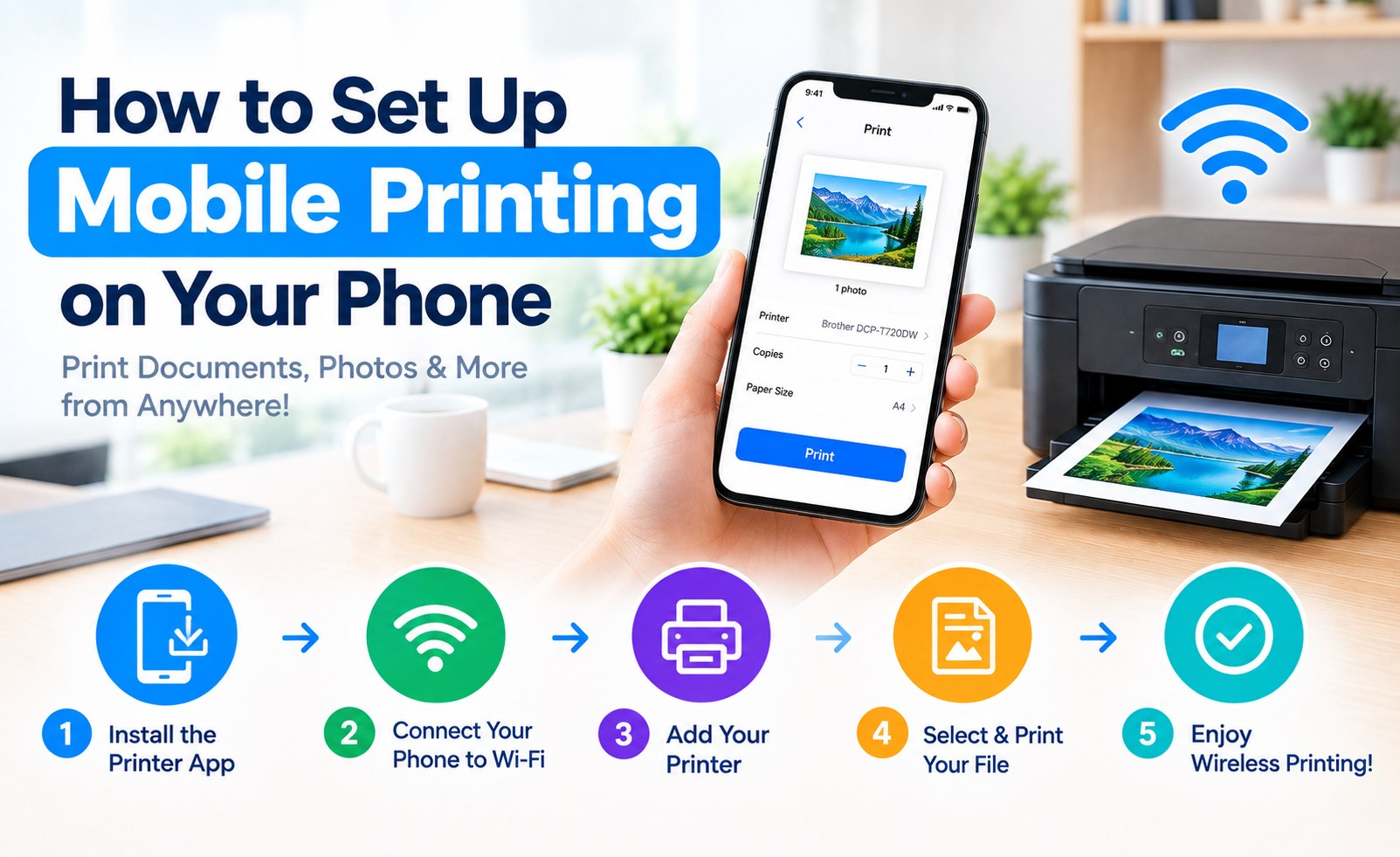
How to Set Up Mobile Printing: Print From Android & iPhone
Printing from a smartphone is now a practical way to handle documents, photos, PDFs, emails, tickets, and other files without first transferring them to a computer. With a compatible wireless printer and a properly configured mobile device, printing can often be completed in just a few steps.
Most modern Wi-Fi printers can communicate with smartphones over the same wireless network. Depending on the device and printer, you may also be able to use built-in mobile printing features or the printer manufacturer's application.
This mobile printing setup guide explains how to connect a printer to an Android phone or iPhone, choose the right printing method, print documents and photos, and check the most important settings before sending a print job.
What You Need for Mobile Printer Setup
Before you begin, make sure your printer and mobile device are ready for wireless printing.
- A printer with Wi-Fi or compatible mobile printing capability
- An Android phone, iPhone, or compatible tablet
- A working wireless network
- The Wi-Fi network name and password
- The latest available operating system updates for your mobile device
- The appropriate printer application when required
Step 1: Connect Your Printer to Wi-Fi
Mobile printing usually works most smoothly when the printer and smartphone are connected to the same wireless network.
On the printer's control panel, open the network or wireless settings. Depending on the model, you may see options such as Wi-Fi Setup, Wireless Setup, Network Settings, or Wireless Setup Wizard.
Select your home or office Wi-Fi network and enter the network password. Wait until the printer confirms that it has joined the network.
For Wi-Fi printing, keeping your phone and printer on the same local network is one of the first things to check when adding a printer.
Mobile Printing Tip
Printer Setup Guide
Step 2: Connect Your Phone to the Same Wi-Fi Network
Once the printer is connected, open the Wi-Fi settings on your smartphone and select the same wireless network used by the printer.
This network connection allows your phone to discover compatible printers that are available for local printing.
If your phone is using mobile data instead of Wi-Fi, switch to the correct wireless network before trying to add or discover the printer.
Step 3: Print From an Android Phone
Android devices can use available printing services, compatible printer applications, or manufacturer printing features depending on the phone and printer model.
- Connect your Android phone to the printer's Wi-Fi network.
- Open the document, photo, webpage, or file you want to print.
- Tap the Share or Menu option available in the application.
- Select Print when the option is available.
- Choose the compatible printer from the printer list.
- Select paper size, copies, color, orientation, and other available preferences.
- Tap the Print button to send the document to the printer.
Step 4: Print From an iPhone or iPad
iPhone and iPad users can print from compatible applications using Apple's built-in printing technology when the printer supports it.
AirPrint-compatible printers can generally be selected directly from the Print option within supported apps, without requiring a traditional computer-style driver installation.
- Connect the iPhone or iPad to the same Wi-Fi network as the printer.
- Open the photo, document, email, webpage, or file you want to print.
- Tap the Share button or the application's action menu.
- Select Print.
- Choose the available printer.
- Adjust copies, pages, paper options, and other available settings.
- Tap Print to send the job.
Step 5: Use the Printer Manufacturer's Mobile App
Some printer brands provide dedicated mobile applications that make it easier to discover a printer, manage print jobs, scan documents, check supplies, and adjust printer settings.
If your printer has an official mobile application, install the version intended for your device and follow the application's setup instructions.
Mobile applications can be especially useful when a printer offers features that are not exposed through the standard printing menu on a smartphone.
Step 6: Print a Photo From Your Phone
Smartphones make photo printing convenient because pictures are already stored on the device.
- Open your phone's Photos or Gallery application.
- Select the picture you want to print.
- Open the Share or More options menu.
- Select Print if available.
- Choose your wireless printer.
- Select the required paper size and number of copies.
- Send the photo to the printer.
Step 7: Print a PDF or Document From a Phone
You can also print many PDF files and office documents directly from a smartphone. Open the file in the application where it is stored and look for the Print option in the Share or menu controls.
Before printing, review the page range, paper size, orientation, number of copies, and color settings. This is particularly useful when printing longer documents.
Mobile Printing Over Wi-Fi Direct
Some printers support Wi-Fi Direct, which can create a direct wireless connection between compatible devices without requiring the printer to join a traditional home or office Wi-Fi network.
The exact connection process varies by printer model. If Wi-Fi Direct is available, check the printer's wireless settings and follow the connection instructions provided for that model.
How to Choose the Right Mobile Printing Method
The best printing method depends on the printer, smartphone, operating system, and features supported by the device.
- Android: Use the available Android printing service or compatible printer application.
- iPhone and iPad: Use AirPrint when the printer supports it, or use the printer's compatible application.
- Wi-Fi Printer: Connect both devices to the same wireless network.
- Wi-Fi Direct Printer: Use the printer's direct wireless connection when supported.
Why Your Phone May Not Find the Printer
If a printer does not appear on your smartphone, several basic connection conditions are worth checking before changing advanced settings.
- Confirm that the printer is powered on.
- Make sure the printer is connected to Wi-Fi.
- Check that the phone and printer are using the same wireless network.
- Restart the printer and reconnect it to the network if necessary.
- Check whether the printer supports your phone's printing method.
- Update the relevant mobile application if one is required.
- Check the printer's network status from its control panel.
Mobile Printing Settings to Check Before Printing
Once the printer is visible on your phone, take a moment to review the available print settings. The options shown can vary depending on the printer and application.
- Number of copies
- Selected pages or page range
- Paper size
- Portrait or landscape orientation
- Color or black-and-white printing
- Print quality
- Double-sided printing when supported
Mobile Printer Setup for Home and Office Use
A properly configured mobile printer can be useful for both home and workplace printing. Family members can print photos and documents from their phones, while employees can send documents to a shared wireless printer from compatible devices.
For shared environments, keeping the printer connected to a stable network and using the appropriate access settings can make everyday mobile printing more consistent.
Mobile Printing Setup Checklist
- Printer is powered on
- Printer is connected to Wi-Fi or a compatible wireless connection
- Smartphone is connected to the correct network
- Printer supports the selected mobile printing method
- Required printer application is installed when needed
- Correct printer is selected before printing
- Paper and ink or toner are available
- Print settings have been reviewed
Frequently Asked Questions About Mobile Printing
How do I print from my phone to a wireless printer?
Connect your phone and printer to the same compatible Wi-Fi network, open the document or photo, select the Print option, choose the printer, and confirm the print settings.
Can I print from an Android phone?
Yes. Many Android phones can print to compatible wireless printers using built-in printing services or a printer manufacturer's mobile application.
Can I print from an iPhone?
Yes. Compatible printers can be used from an iPhone through AirPrint or an appropriate printer application, depending on the printer model.
Do my phone and printer need to be on the same Wi-Fi?
For standard local wireless printing, the phone and printer generally need to be reachable through the same local network. Some printers also offer Wi-Fi Direct as an alternative connection method.
Why is my wireless printer not showing on my phone?
Check the printer's power and network connection, confirm that the phone is using the correct Wi-Fi network, and verify that the printer supports the printing method available on your smartphone.
Can I print photos directly from my smartphone?
Yes. Open the photo in your phone's Gallery or Photos application, select the available Print option, choose a compatible printer, and adjust the print settings.
Do I need a printer app to print from my phone?
Not always. Some printers work with built-in mobile printing features. Other models may provide additional functions through a dedicated manufacturer application.
Conclusion
Mobile printing makes it possible to send documents, photos, PDFs, and other files directly from a smartphone or tablet to a compatible printer. In most cases, the process begins by connecting the printer and mobile device to the appropriate wireless network.
Android devices can use available mobile printing services or compatible printer applications, while iPhone and iPad users can use AirPrint when supported. Printer-specific apps may also provide additional features such as scanning, printer management, and supply information.
The exact options can differ between printer models, mobile operating systems, applications, and network configurations. Checking the printer's compatibility before setup helps you choose the right mobile printing method.
Related Printer Setup Guides
Add Comment


Comments
Mobile Printing Guide
Printer Setup InformationHave a question about printing from your phone? Share your mobile printing question or setup experience in the comments.