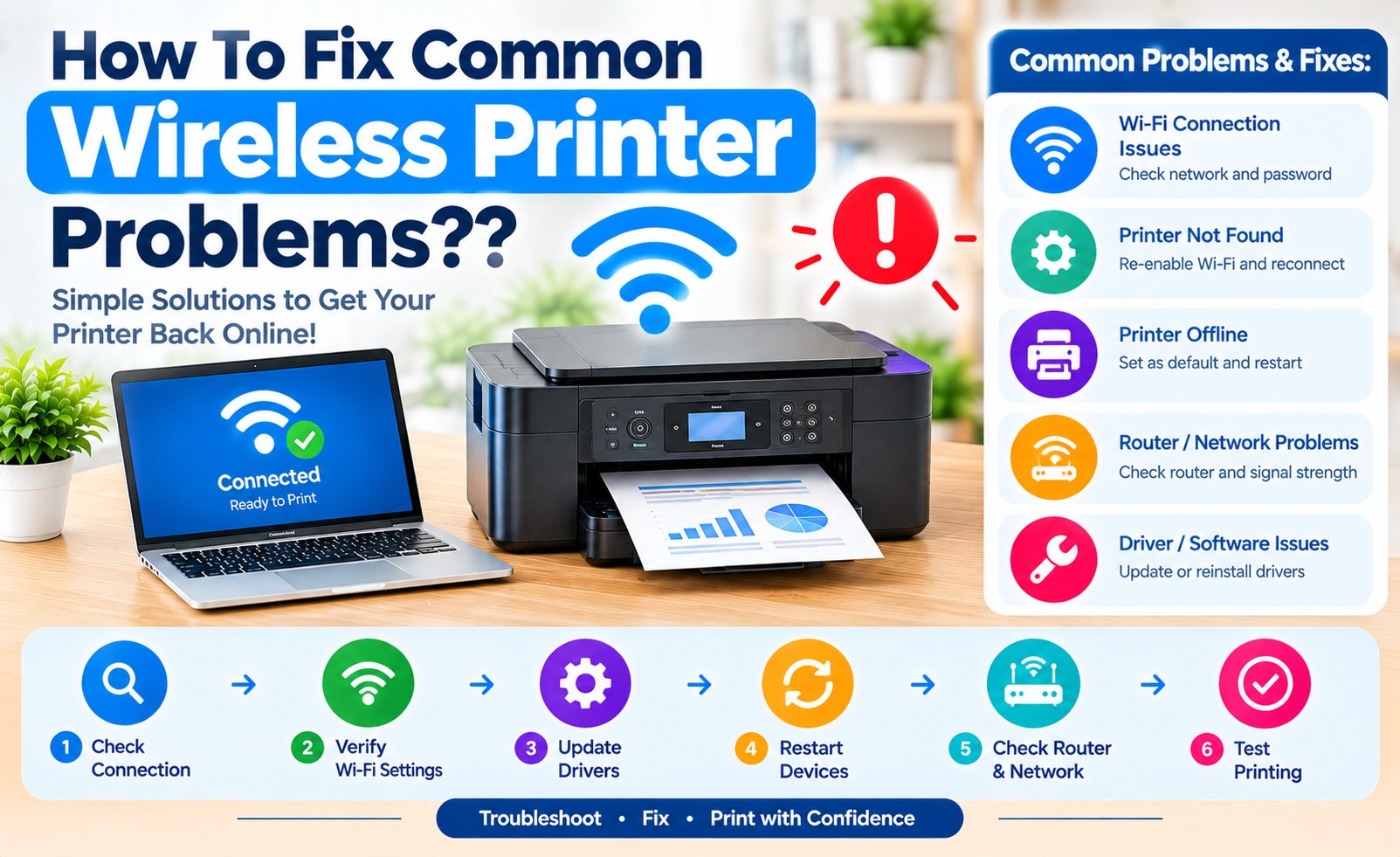
Fixing Common Wireless Connection Problems: Complete Printer Troubleshooting Guide
Wireless printing is convenient until a printer suddenly disappears from the network, shows an offline message, refuses to connect to Wi-Fi, or stops responding to print commands. These problems can come from the printer, wireless network, computer, driver, or the communication path between them.
The most effective way to fix a wireless printer connection problem is to identify where communication stops instead of repeatedly reinstalling the printer. A printer may be connected to Wi-Fi while the computer is unable to reach it, or the printer may have joined a different network than the device sending the print job.
This wireless printer troubleshooting guide explains how to diagnose common connection failures, restore network communication, correct offline status, check IP settings, and reconnect a printer without unnecessarily changing working configuration.
Start With a Quick Wireless Connection Check
Before changing drivers or resetting network settings, check the basic connection conditions. A few simple observations can identify whether the issue is related to power, Wi-Fi, the computer, or the printer software.
- Confirm that the printer is powered on and ready.
- Check whether the printer shows a Wi-Fi or network connection indicator.
- Make sure the computer or mobile device is connected to the intended wireless network.
- Check whether other devices can access the network normally.
- Look for an error message on the printer display before restarting anything.
If several devices are experiencing network problems, the printer itself may not be the source of the failure. If the network works normally but only the printer is unreachable, continue with printer-specific checks.
Problem 1: The Printer Cannot Find the Wi-Fi Network
One common wireless printer problem occurs when the printer's setup screen does not display the expected Wi-Fi network. This can happen when the printer is outside a useful wireless range, when wireless settings have changed, or when the printer is not compatible with the network configuration being used.
Move the printer closer to the wireless router temporarily and run the printer's wireless setup or network search again. Check the network name carefully before selecting it. If several similar network names appear, choose the network that the computer or mobile device is actually using.
If the printer still cannot see the network, review the printer's supported wireless requirements and the router's active network settings. Avoid changing multiple router settings at once because doing so can make the original cause harder to identify.
Problem 2: The Printer Will Not Connect to Wi-Fi
If the printer can see the wireless network but fails after the password is entered, first re-enter the Wi-Fi password carefully. Pay attention to uppercase and lowercase characters, numbers, and special characters.
- Open the printer's wireless or network settings.
- Select the intended Wi-Fi network.
- Enter the current wireless password.
- Wait for the printer to confirm the network connection.
- Check the printer's network status or print a network configuration page if the model provides one.
If the router password was changed recently, the printer may still be trying to use the previous credentials. Reconnecting the printer to the network with the current password can restore communication without reinstalling the computer's printer software.
Before reinstalling a wireless printer, confirm that the printer is connected to the same network your computer is using.
Troubleshooting Tip
Wireless Printer Guide
Problem 3: The Printer Is Connected but Shows Offline
A printer can remain connected to Wi-Fi while the computer reports it as offline. This usually means the computer is not currently communicating with the printer through the expected printer connection.
Start by checking the printer's network status. If the printer has a display, verify that it still reports a wireless connection. Then check the printer list on the computer and make sure you are sending the document to the correct printer rather than an old or duplicate installation.
On Windows, review the printer's queue and status settings and remove any paused or stuck jobs. On Mac, open the Printers & Scanners settings and confirm that the selected printer is the intended network device.
Problem 4: The Printer Appears More Than Once
Repeated setup attempts can create multiple printer entries on the same computer. You may see names such as a printer model followed by numbers, copies, or separate entries for USB and network connections. Selecting the wrong entry can make a working printer appear unavailable.
Review the installed printer list and identify which entry corresponds to the current wireless connection. Test the suspected active printer before removing older entries. Keeping only the connection you actually use can make printer selection and troubleshooting much easier.
Problem 5: The Printer IP Address Has Changed
Network printers communicate using network addressing. If the printer receives a different local IP address after a router restart or network change, a computer that was configured with an older address may stop reaching the printer.
Check the printer's network information to determine its current IP address. If the computer's printer connection references an outdated address, updating or recreating the network printer connection may restore communication. The exact procedure depends on the operating system and printer software.
If the same IP address change happens repeatedly, review the network configuration with the router or network administrator rather than repeatedly reinstalling the printer. A stable network configuration can reduce recurring connection interruptions.
Problem 6: The Printer Keeps Disconnecting
Intermittent wireless printer connections can be more difficult to diagnose than a complete connection failure. If the printer works for a while and then disappears, check the physical distance between the printer and router, nearby wireless interference, and whether other devices also lose network access at the same time.
- Test the printer closer to the router.
- Check whether the wireless signal is consistently available at the printer location.
- Restart the printer and network equipment when appropriate.
- Confirm that the printer has not switched to a different saved network.
- Check whether the problem affects only one computer or every device using the printer.
Problem 7: The Computer Cannot Detect the Wireless Printer
If the printer is connected to Wi-Fi but does not appear when you try to add it, verify the network relationship before reinstalling software. The printer and computer should normally be able to communicate through the same local network.
Check for guest-network isolation, different network names, VPN or security software that may affect local discovery, and duplicate printer entries. If automatic discovery fails, some operating systems and printer utilities provide an option to add a network printer using its detected address or printer information.
Problem 8: Print Jobs Stay in the Queue
A wireless connection may be working even when a print job is stuck in the queue. A blocked queue can prevent later documents from printing and can create the impression that the printer has lost its network connection.
- Open the printer's print queue on the computer.
- Check whether a document is paused or showing an error.
- Cancel failed or duplicate jobs when appropriate.
- Confirm that the intended printer is selected.
- Send a small test document after the queue is clear.
If the queue repeatedly becomes stuck, investigate the printer driver, print service, network communication, or the document that triggers the failure instead of assuming that the Wi-Fi connection is always the cause.
Check the Printer Driver and Software Connection
A printer can be online and reachable over Wi-Fi but still fail to print when the installed driver or printer software is incorrect, damaged, or associated with an old printer entry. This is especially important after changing computers, reinstalling an operating system, or moving from a USB connection to wireless printing.
Confirm that the installed printer software matches the printer model and operating system. If several versions of the same printer are installed, identify the active wireless connection before removing older software. Reinstalling everything should be treated as a troubleshooting step, not the first response to every wireless error.
Restart the Connection in the Correct Order
A controlled restart can clear temporary communication problems. When a restart is appropriate, avoid switching everything on and off repeatedly without checking the result after each stage.
- Finish or cancel any pending print jobs.
- Turn the printer off and wait briefly.
- Restart the wireless router if the network itself is experiencing problems.
- Wait for the wireless network to become available.
- Turn the printer back on and confirm its network status.
- Check the computer's printer connection and run a test print.
When to Reset the Printer's Network Settings
A network reset can be useful when the printer contains old wireless credentials or configuration information that prevents a fresh connection. However, resetting network settings also removes the printer's current network configuration, so it should not be the first troubleshooting step when a simple connection check could solve the problem.
Before resetting, make sure you know the Wi-Fi network name and password that the printer should use. After the reset, reconnect the printer to the intended network and then verify the computer's printer entry.
Troubleshooting Wireless Printer Problems on Windows
On Windows, begin by opening the printer settings and checking the selected printer, queue, status, and available device information. If the printer appears multiple times, compare the entries before changing drivers or removing devices.
If Windows cannot find the printer, verify the printer's network connection first. If Windows can see the printer but jobs do not print, investigate the queue and driver configuration. Separating discovery problems from printing problems makes the troubleshooting process more focused.
Troubleshooting Wireless Printer Problems on Mac
Mac users can review the printer in System Settings under Printers & Scanners. Confirm that the correct printer is selected and check whether the device is responding normally.
If a printer was previously configured with another connection method, check for duplicate entries before adding it again. Removing an obsolete printer entry and adding the active network printer can resolve connection confusion without changing the printer's physical wireless setup.
A Simple Diagnostic Order That Saves Time
Wireless printer troubleshooting becomes easier when each layer is checked separately. Use this order to narrow down the cause:
- Printer: Is it powered on and ready?
- Wi-Fi: Is the printer connected to the intended wireless network?
- Network: Can the computer communicate with the printer over the local network?
- Printer entry: Is the computer using the correct printer rather than an old duplicate?
- Queue: Are print jobs paused, stuck, or generating errors?
- Driver: Does the installed software match the printer and operating system?
Common Wireless Printer Errors and What to Check
Different error messages can point to different parts of the connection. Use the message as a clue rather than assuming that every error requires a full printer reinstallation.
- Printer offline: Check network status, selected printer, and print queue.
- Printer not found: Check Wi-Fi connection, network visibility, and local device communication.
- Unable to connect: Recheck wireless credentials and the printer's network settings.
- Jobs not printing: Inspect the queue, printer status, and driver configuration.
- Connection keeps dropping: Check signal conditions, network stability, and repeated address changes.
When a Full Reinstallation Makes Sense
Reinstalling a wireless printer can be appropriate when the existing printer entry is corrupted, the driver configuration is no longer valid, or the printer has moved to a different network and cannot be updated cleanly. Before doing so, record the printer model and confirm the correct wireless network.
After removing an obsolete installation, restart the computer if required by the operating system, reconnect the printer to Wi-Fi, and add the printer again. Finish with a test print rather than assuming that successful device detection means printing is fully functional.
Tips for Preventing Future Wireless Printer Problems
- Keep the printer within a reliable wireless range.
- Record the correct Wi-Fi network used during setup.
- Avoid keeping unnecessary duplicate printer entries on the computer.
- Check printer and driver settings after major network or operating system changes.
- Use a test print after troubleshooting to confirm that the complete communication path works.
- Keep track of recurring connection failures so that patterns such as address changes or signal loss are easier to identify.
Frequently Asked Questions About Wireless Printer Problems
Why does my wireless printer say offline? The printer may have lost its network connection, the computer may be using an old printer entry, or a print queue may be blocking communication. Check the printer's network status and selected printer before reinstalling it.
Why can't my computer find my wireless printer? Confirm that the printer is connected to the intended network and that the computer is also using a network that can communicate with the printer. Duplicate entries and local network restrictions can also affect discovery.
Why does my printer keep disconnecting from Wi-Fi? Check the wireless signal, printer location, network stability, and whether the printer repeatedly receives a different network address.
Should I reset my printer when Wi-Fi stops working? A network reset can help when saved wireless settings are incorrect, but first check the network, password, printer status, and current connection. A reset should be followed by a fresh wireless setup.
Why does the printer connect but not print? A successful Wi-Fi connection does not always mean the computer's printer software is configured correctly. Check the selected printer, print queue, driver, and network communication.
Conclusion
Fixing common wireless printer connection problems is easier when the issue is separated into clear stages: printer status, Wi-Fi connection, network communication, printer entry, print queue, and driver configuration. Checking these layers in order can help identify the actual source of the problem instead of relying on repeated resets or reinstallations.
If a wireless printer continues to disconnect or remain unreachable after basic troubleshooting, review its network information and the computer's printer configuration in detail. The exact menus and recovery options vary by printer model and operating system, so use the instructions provided for the specific device whenever available.
Related Printer Troubleshooting Guides
Add Comment


Comments
Printer Setup Guide
Setup InformationHave a printer setup question? Share your question or setup experience in the comments.