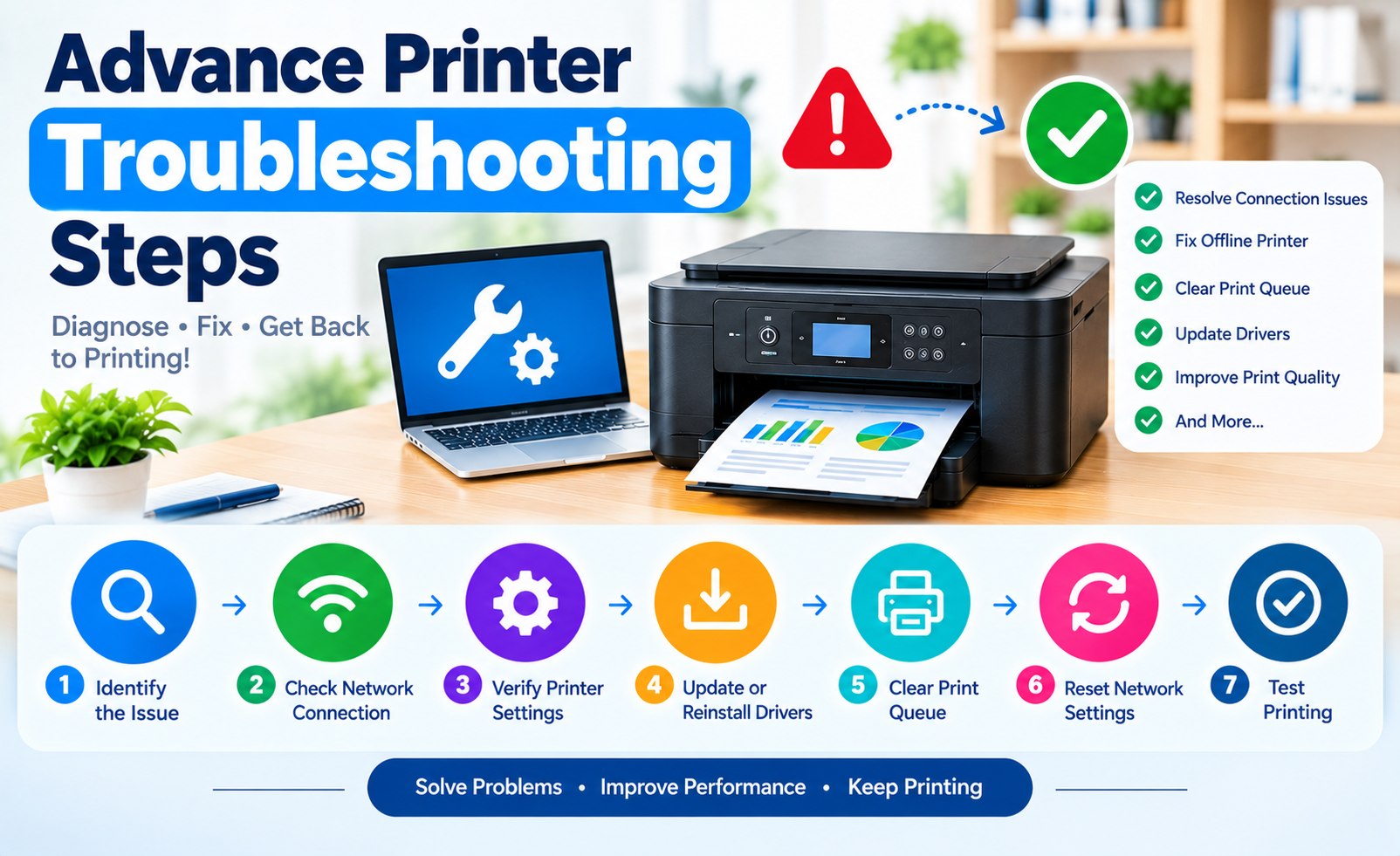
Advanced Printer Troubleshooting: Complete Step-by-Step Guide
Printer problems can range from simple connection failures to driver conflicts, stalled print queues, network communication errors, paper-feed problems, and inconsistent print quality. When basic restart steps do not solve the issue, a structured troubleshooting process can help identify the actual cause.
This advanced printer troubleshooting guide explains how to diagnose common printer failures systematically instead of repeatedly reinstalling software or changing random settings. The steps can be useful for wireless, USB, and network printers connected to Windows computers or Mac devices.
Start with the simplest checks and move toward network, driver, queue, configuration, and hardware diagnostics. The goal is to isolate one possible cause at a time and confirm whether the printer responds after each change.
Start With a Complete Printer Diagnosis
Before changing printer settings, identify exactly what is failing. Determine whether the printer powers on, responds to controls, appears on the computer, accepts print jobs, feeds paper, and produces a usable page.
- Check whether the printer displays an error message or code.
- Determine whether the problem affects one computer or every device connected to the printer.
- Check whether the printer can make a built-in test, information, or configuration page.
- Note whether the issue started after a software update, network change, cartridge replacement, or driver change.
- Confirm whether the printer is connected through USB, Wi-Fi, Ethernet, or another supported connection.
Step 1: Perform a Full Power Reset
A normal restart does not always clear temporary printer communication states. For a deeper reset, cancel pending print activity, turn off the printer, disconnect its power source, wait briefly, and reconnect it. Then allow the printer to complete its startup process before sending another job.
Restart the computer or mobile device as well when the problem appears to involve communication between the device and printer. This can refresh temporary network and printer-detection processes.
Step 2: Check the Printer's Connection Status
Connection problems are a frequent reason a printer appears unavailable. Verify the physical or wireless connection before changing drivers.
- For USB printers, reconnect the cable and try another compatible USB port if available.
- For Ethernet printers, inspect the network cable and confirm that the network connection is active.
- For Wi-Fi printers, confirm that the printer shows an active wireless connection.
- Make sure the computer is connected to the intended network.
- Check whether the printer has received a different network address after reconnecting to Wi-Fi.
Diagnose the connection before reinstalling the printer driver. A correct driver cannot fix a printer that the computer cannot communicate with.
Troubleshooting Tip
Printer Diagnosis
Step 3: Fix a Printer That Appears Offline
If the printer is powered on but the computer reports it as offline, first verify that the selected printer is the correct device. Multiple installations of the same printer can create confusing entries in the printer list.
- Open the printer settings on your computer.
- Confirm that the selected printer matches the physical printer you are using.
- Review the printer status for paused, offline, or error conditions.
- Cancel old jobs if the queue is preventing new jobs from processing.
- Restart the printer and computer before testing again.
Step 4: Clear a Stuck Print Queue
A damaged or stalled print queue can make a working printer appear unresponsive. If documents remain stuck in the queue, cancel them individually when possible and then send a small test document.
If jobs cannot be removed normally, restart the computer's printing service or restart the system according to the operating system's available troubleshooting options. Avoid repeatedly sending the same document while an earlier job is still waiting.
Step 5: Troubleshoot Printer Driver Problems
Driver problems may occur when the installed software does not match the printer model, operating system, or connection method. Symptoms can include failed installation, missing printer features, repeated error messages, or print jobs that never complete.
- Confirm the exact printer model.
- Remove obsolete or duplicate printer entries when they are no longer needed.
- Install the driver or printer software intended for the exact model and operating system.
- Restart the computer after a major driver installation or removal when requested.
- Test printing before installing additional optional utilities.
Step 6: Diagnose Wi-Fi Printer Connection Problems
When a wireless printer repeatedly disconnects or cannot be discovered, inspect the network path rather than assuming the printer software is the only problem.
- Confirm that the printer is connected to the intended wireless network.
- Check the Wi-Fi signal at the printer's location.
- Restart the printer and network equipment when appropriate.
- Check whether the computer is using the same local network as the printer.
- Reconnect the printer to Wi-Fi if its saved network information is no longer valid.
If the printer works through another connection but not over Wi-Fi, the problem is more likely related to wireless communication, network configuration, or printer discovery rather than the printer's basic print mechanism.
Step 7: Troubleshoot Printer IP Address Changes
Network printers may become difficult to reach when their network address changes. This can happen after reconnecting to Wi-Fi or restarting network equipment.
Check the printer's network or configuration information and compare the current network details with the printer entry configured on the computer. If the computer is trying to reach an outdated address, remove and re-add the printer using the appropriate network discovery or printer configuration method.
Step 8: Fix Paper Jams and Paper Feed Problems
Paper-feed errors should be handled carefully to avoid tearing paper inside the printer. Turn the printer off when required by its instructions and inspect the accessible paper path.
- Remove loose paper from the input tray.
- Check the visible paper path for scraps or folded sheets.
- Make sure the paper guides are positioned correctly.
- Avoid overfilling the paper tray.
- Reload clean, suitable paper and test the printer again.
Step 9: Diagnose Poor Print Quality
Faded output, missing sections, streaks, uneven text, or incorrect colors may have different causes. Start by checking the printer's maintenance and diagnostic options.
- Print a test or diagnostic page.
- Check ink or toner status.
- Run the printer's available cleaning or printhead maintenance procedure when appropriate.
- Run printhead alignment if the printer provides that option.
- Confirm the correct paper type and print quality settings.
Step 10: Check Printer Preferences and Port Settings
Incorrect printer preferences can cause unexpected results even when the printer is communicating correctly. Review paper size, media type, color mode, duplex settings, print quality, and default printer selection.
For network printers, also review the configured connection or port information. A printer may be installed correctly but associated with an outdated connection entry.
Step 11: Remove Duplicate Printer Installations
Multiple copies of the same printer can create confusing names and cause documents to be sent to an inactive or incorrectly configured entry.
Review the printer list and identify duplicate installations. Keep the active printer configuration and remove obsolete entries when appropriate. Then set the intended printer as the default if required.
Step 12: Test the Printer From Another Device
Testing from another computer or mobile device can help isolate the source of a printer problem. If the printer works from one device but fails from another, investigate the affected computer's driver, settings, queue, or network configuration.
If the printer fails from every connected device, investigate the printer itself, its network connection, consumables, error messages, or hardware-related conditions.
Step 13: Reinstall the Printer as a Last Software Step
If the printer remains unusable after connection and queue checks, remove the existing printer installation and add it again. Reinstallation can remove an incorrect configuration, stale device entry, or damaged software association.
Before reinstalling, record any important custom printer preferences and confirm that you have the correct software for the exact printer model.
Advanced Printer Troubleshooting Checklist
Use this checklist when basic printer troubleshooting has not resolved the problem:
- Confirm the printer has power and completes startup normally.
- Check the printer's displayed error or status message.
- Verify the USB, Ethernet, or Wi-Fi connection.
- Check the computer's selected printer and print queue.
- Confirm the installed printer driver matches the model.
- Test a printer diagnostic or configuration page.
- Check paper, ink, toner, and other basic consumables.
- Test the printer from another device when possible.
- Remove obsolete printer entries before reinstalling.
- Reinstall the printer only after identifying the likely software or configuration cause.
When to Stop Troubleshooting and Seek Service
Some problems may require professional service rather than additional software changes. Persistent mechanical noises, repeated hardware errors, damaged components, electrical problems, or failures that continue after appropriate configuration and maintenance checks may indicate a hardware fault.
Avoid opening internal printer components or attempting repairs that are not covered by the printer's documented maintenance procedures. Use the manufacturer's service documentation or an authorized repair option when hardware intervention is needed.
Frequently Asked Questions About Printer Troubleshooting
Why is my printer connected but not printing?
Check the selected printer, print queue, driver, connection status, and printer error messages. A printer can show as connected while a stalled queue or incorrect printer entry prevents the document from being processed.
Why does my wireless printer keep going offline?
Check the printer's Wi-Fi connection, wireless signal, computer network, and current network configuration. Reconnecting the printer to the intended Wi-Fi network may also be necessary.
Should I reinstall the printer driver first?
Not always. Diagnose the connection, printer status, and print queue first. Reinstalling a driver will not correct a network connection failure, paper jam, or hardware problem.
How can I tell whether the printer or computer is the problem?
Test the printer from another compatible device when possible. If it works elsewhere, focus on the original computer's software, settings, queue, or network configuration.
Conclusion
Advanced printer troubleshooting is most effective when each possible cause is checked in a logical order. Start with power and connection checks, then examine printer status, print queues, drivers, network communication, paper handling, print quality, and device configuration.
Avoid making several changes at once. By testing one step at a time, you can identify whether the problem is related to the printer, computer, driver, network, print queue, consumables, or hardware. This approach can make printer troubleshooting faster and reduce unnecessary reinstalls or configuration changes.
Related Printer Troubleshooting Guides
Add Comment


Comments
Printer Troubleshooting Guide
Setup InformationHave a printer setup question? Share your question or setup experience in the comments.