Why Does My Printer Keep Saying It's Offline? Complete Troubleshooting Guide
Seeing an "Offline" message when you are ready to print can be confusing, especially when the printer is turned on and appears to be connected. A printer can have power and still be unavailable to the computer because the connection between the devices is not working correctly.
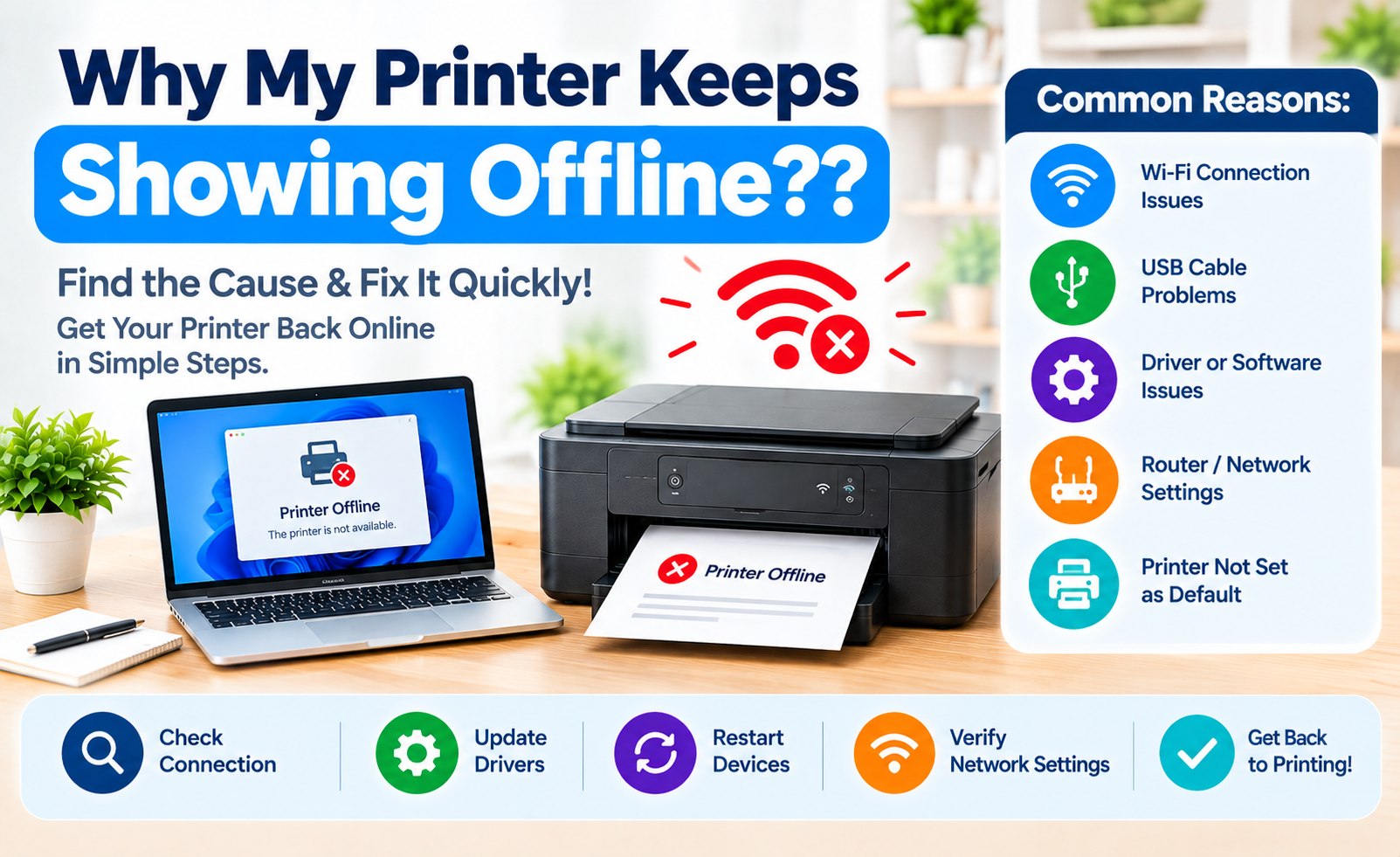
A printer may repeatedly appear offline because of a disconnected Wi-Fi connection, a network change, a paused print queue, an incorrect printer setting, a driver problem, or a change in the printer's network address.
This guide explains why a printer keeps showing offline and provides practical steps to check the printer, wireless network, computer settings, drivers, print queue, and connection.
What Does "Printer Offline" Mean?
When a computer says that a printer is offline, it generally means the computer cannot communicate with the printer through the connection it is currently using.
The printer itself may still be powered on. The problem is often related to how the computer is trying to reach the printer rather than a complete loss of power.
For a wireless printer, this can happen when the printer disconnects from Wi-Fi or the computer and printer are no longer communicating through the same network. For a USB printer, the issue may involve the cable, USB port, driver, or printer configuration.
Common Reasons a Printer Goes Offline
There are several reasons a printer may repeatedly change to an offline status. Common possibilities include:
- The printer has lost its Wi-Fi connection.
- The computer and printer are connected to different networks.
- The router or Wi-Fi password was recently changed.
- The printer has entered a sleep or power-saving state.
- The printer has been set to work offline.
- A print job is stuck in the queue.
- The printer driver is outdated or incorrectly installed.
- The printer's network address has changed.
- A USB cable or computer port is not communicating correctly.
Step 1: Check the Printer's Power and Status
Start with the printer itself before changing settings on your computer. Confirm that the printer is powered on and that its display or status lights do not indicate an error.
Check for messages related to paper, ink, toner, paper jams, network connection, or other conditions that may prevent the printer from accepting a print job.
If the printer has a control panel, open its network or wireless settings and confirm that Wi-Fi is enabled and the printer shows a connection to your network.
Step 2: Check the Wi-Fi Connection
If you are using a wireless printer, check whether it is still connected to the correct Wi-Fi network.
Your computer and printer should normally be connected to the same local network. If the printer was connected to a different network, it may remain powered on while appearing offline to your computer.
If you recently changed your Wi-Fi password, replaced your router, or created a new wireless network, the printer may need to be connected to the new network again.
A printer can show a normal status on its own display while still appearing offline on a computer if the computer is trying to reach an old or unavailable network address.
Printer Connection Tip
Troubleshooting Guide
Step 3: Restart the Printer, Router, and Computer
Restarting the devices can clear temporary connection problems and allow the printer and computer to establish a fresh connection.
- Turn the printer off.
- Restart your wireless router if the printer is connected through Wi-Fi.
- Wait for the network to become available again.
- Turn the printer back on.
- Restart your computer.
- Check the printer status and try a new test print.
Step 4: Check Printer Settings in Windows
Windows may display a printer as offline when the selected printer is unavailable or when a print queue or connection problem prevents communication.
Open Windows Settings and go to the printer section. Depending on your Windows version, the menu may be located under Bluetooth & Devices and Printers & Scanners.
- Open Windows Settings.
- Select Bluetooth & Devices.
- Open Printers & Scanners.
- Select the printer you want to use.
- Check its current status and available printer options.
- Open the print queue and check for paused or pending documents.
Windows menu names can vary slightly depending on the version and configuration of the operating system.
Step 5: Check Printer Settings on Mac
If your printer is showing offline on a Mac, check its connection through the Printers & Scanners section in macOS.
- Open System Settings.
- Select Printers & Scanners.
- Select your printer from the available printer list.
- Review the printer's current status.
- Check for pending print jobs.
- If necessary, remove and add the printer again.
The exact settings and menu labels may differ between macOS versions.
Step 6: Clear a Stuck Print Queue
A document that is stuck in the print queue can prevent later documents from printing correctly. This can make the printer appear unavailable even though the physical printer is working.
Open the printer's queue on your computer and review pending documents. Cancel documents that are no longer needed, then restart the printer if necessary.
After clearing the queue, send a small test document instead of immediately sending a large print job. This helps confirm whether communication has been restored.
Step 7: Check the Printer Driver
The printer driver or related printer software helps the operating system communicate with the printer. Problems with the installed software can sometimes result in connection or printing errors.
Check whether the appropriate driver is installed for your printer model and operating system. If the existing installation appears damaged or incorrect, removing the printer and installing the appropriate software again may help.
For detailed information about driver installation, visit our Printer Driver Setup Guide .
Step 8: Check the Printer's IP Address
Network printers communicate through a network address. In some home networks, that address can change after a router restart, network configuration change, or other network event.
If the computer still has the printer configured using an older address, it may fail to communicate with the printer even though the printer is connected to Wi-Fi.
In this situation, removing and adding the printer again can allow the computer to discover its current network connection. Advanced users can also review the printer's network information and configuration options.
Step 9: Check the USB Connection
If your printer uses a USB connection instead of Wi-Fi, inspect the cable and computer port.
- Make sure the USB cable is securely connected.
- Try another compatible USB port on the computer.
- Check the cable for visible damage.
- Avoid using a faulty or unreliable USB hub when testing the connection.
- Remove and re-add the printer if the computer no longer recognizes it correctly.
Step 10: Set the Correct Default Printer
If several printers are installed on the same computer, the operating system may send documents to a different printer than the one you expect to use.
Review your printer list and make sure the intended printer is selected as the default when appropriate. Removing old or duplicate printer entries can also make the printer list easier to manage.
What to Do If the Printer Goes Offline Again
If your printer repeatedly changes from online to offline, look for a pattern rather than repeatedly reinstalling the printer.
- Check whether the Wi-Fi connection is stable.
- Confirm that the printer remains connected to the intended network.
- Check whether the problem occurs after the printer enters a power-saving state.
- Keep the printer within a suitable wireless range.
- Check for available printer software or firmware updates when appropriate.
- Review the network configuration if the printer repeatedly loses its connection.
Printer Offline After Changing the Wi-Fi Password
Changing the Wi-Fi password can disconnect devices that were previously connected to the old wireless network.
If your printer was working before the password change and started showing offline afterward, reconnect the printer using the new Wi-Fi credentials.
Once the printer joins the network again, check your computer's printer list and send a test print.
Printer Offline After Replacing the Router
Replacing a wireless router can create a new network environment. Even if the printer is physically in the same location, it may no longer be connected to the network used by your computer.
Connect the printer to the new Wi-Fi network and verify that your computer is also connected to that network. If the computer continues to use an old printer entry, remove the outdated entry and add the printer again.
Printer Offline on Windows vs. Mac
The basic troubleshooting process is similar on Windows and Mac, but the location of printer settings is different.
- Windows: Check Printers & Scanners, printer status, print queue, connection, and driver settings.
- Mac: Check Printers & Scanners, printer status, pending jobs, and the configured printer connection.
- Both: Confirm the printer is powered on and connected to the correct network before changing software settings.
Final Printer Offline Checklist
Before reinstalling your printer, work through this quick checklist:
- Printer is powered on.
- Printer has no paper, ink, toner, or hardware error that prevents printing.
- Wi-Fi is enabled when using a wireless connection.
- Computer and printer are connected to the same network when required.
- Wi-Fi password and network information are current.
- Print queue does not contain stuck documents.
- Printer is not intentionally set to offline mode.
- Correct printer driver or software is installed.
- Printer network information is current.
- Correct printer is selected on the computer.
Conclusion
A printer that keeps showing offline does not always mean the printer itself has stopped working. In many cases, the issue is related to Wi-Fi connectivity, network configuration, a stuck print queue, printer settings, drivers, or an outdated connection entry on the computer.
Start with the simplest checks: confirm the printer is powered on, verify its network connection, restart the relevant devices, and check the printer status on your computer. If the problem continues, review the print queue, driver, network address, and printer configuration.
The exact troubleshooting steps can vary depending on the printer model, operating system, network equipment, and connection method. Use the settings and instructions applicable to your specific printer and computer.
Related Printer Setup Guides
Add Comment


Comments
Printer Troubleshooting Guide
Printer Offline InformationHave a printer offline question? Share your printer setup issue or troubleshooting experience in the comments.