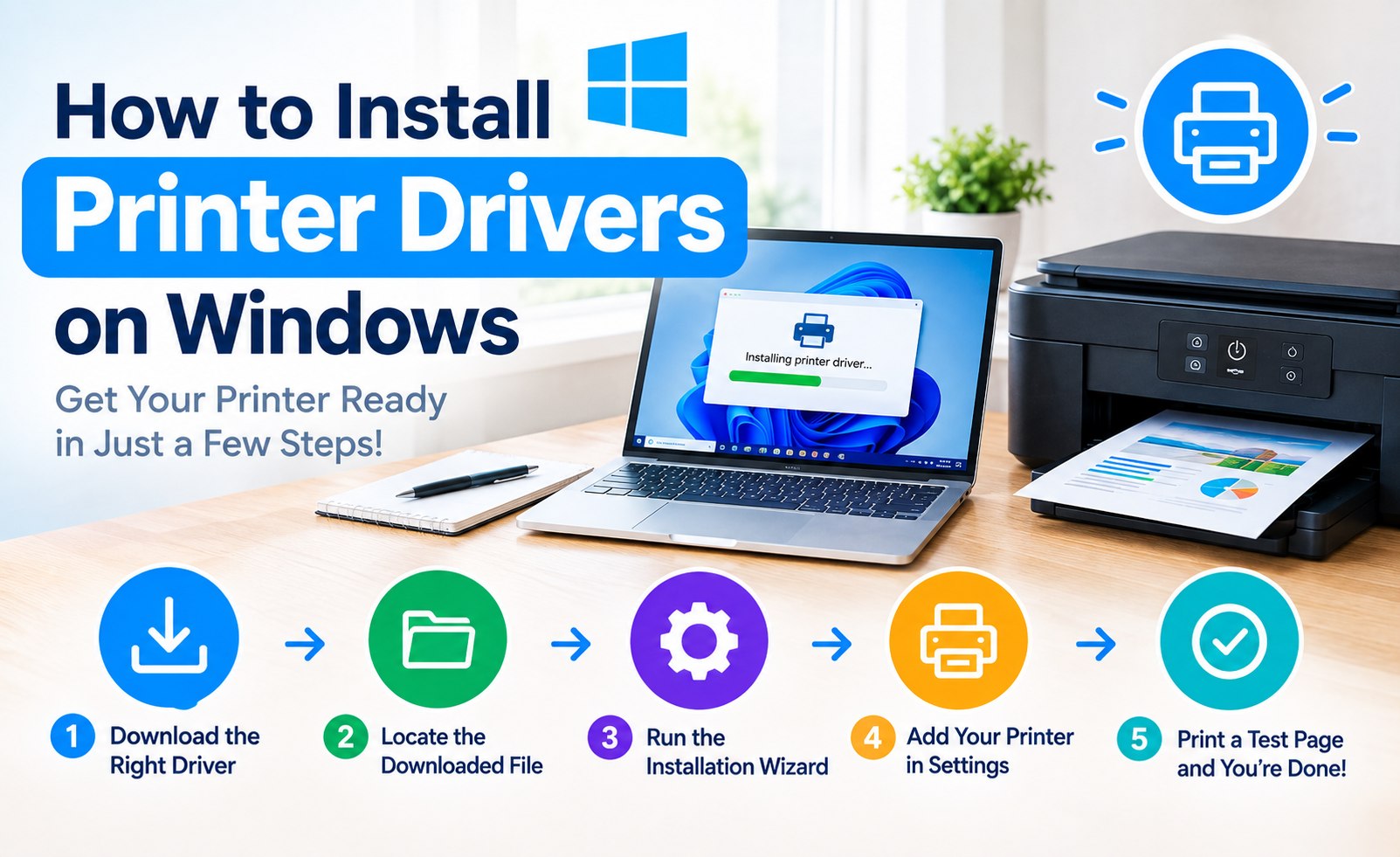
How to Install a Printer Driver on Windows & Mac: Complete Setup Guide
A printer driver is the software that allows your computer and printer to communicate correctly. When the right driver is installed, your operating system can recognize the printer, send print jobs to it, and provide access to available printing features.
If you are setting up a new printer, replacing an older computer, or reinstalling printer software after an operating system change, installing the correct printer driver is an important part of the process. The driver must match both the printer model and the operating system being used.
This printer driver setup guide explains how to find the correct driver, download the appropriate software, install it on Windows or Mac, add the printer, and check that everything is ready for normal printing.
What You Need Before Installing a Printer Driver
Before starting the printer driver installation, collect a few basic details. This helps prevent compatibility problems and makes the setup process easier.
- The exact printer brand and model number
- A Windows PC or Mac with the operating system version available
- An internet connection if the driver needs to be downloaded
- A working USB cable or Wi-Fi/network connection, depending on your setup
- The printer powered on and ready to be configured
Step 1: Find Your Printer Model
The first step in printer driver setup is identifying the exact printer model. The model name is usually printed on the front, top, or rear panel of the printer.
Use the complete model name rather than searching only for the brand. Different printers within the same product family can require different software packages or driver versions.
If the model number is not visible, check the printer's information screen, original documentation, product label, or other identification information supplied with the device.
Step 2: Check Your Windows or Mac Version
Printer drivers are designed for specific operating systems. Before downloading printer software, confirm whether you are using Windows or macOS and identify the version installed on your computer.
On Windows, open Settings and check the System information. On Mac, open the Apple menu and select About This Mac or the corresponding system information option available on your version of macOS.
This step is important because an older driver may not provide full compatibility with a newer operating system, while a package designed for a different platform cannot be installed in the same way.
Always match the printer driver to the exact printer model and operating system before beginning installation.
Printer Driver Setup Tip
Printer Installation Guide
Step 3: Download the Correct Printer Driver
Once you know the printer model and operating system, locate the manufacturer's official software or driver download page. Search for the exact model and select the package that corresponds to your computer.
Printer software can be offered as a basic driver, full driver package, setup utility, or complete software suite. The available options depend on the printer model.
If your printer includes additional functions such as scanning, copying, maintenance utilities, or advanced print settings, a complete software package may provide more features than a basic print-only driver.
Step 4: Install the Printer Driver
After downloading the appropriate printer software, open the installer and follow the instructions displayed on the screen. The installation sequence can differ between printer manufacturers and models.
- Close unnecessary printer applications before starting the installation.
- Open the downloaded driver or printer software installer.
- Review the installation options and select the appropriate setup type.
- Connect the printer by USB or select the wireless/network connection option when requested.
- Allow the installation program to detect and configure the printer.
- Complete the remaining installation steps.
- Restart the computer if the installer specifically requests it.
Printer Driver Setup on Windows
Windows can automatically recognize many printers, but installing the manufacturer's compatible driver can provide access to additional settings and model-specific functionality.
After installing the printer software, check whether Windows has added the printer correctly.
How to Add a Printer in Windows
- Open Settings on your Windows computer.
- Select Bluetooth & Devices.
- Open Printers & Scanners.
- Select Add Device.
- Wait while Windows searches for available printers.
- Select your printer from the available devices.
- Complete any remaining configuration steps.
If the printer is already listed, open its settings and review the available printer properties and preferences. You can also choose whether the printer should be your default printer.
Printer Driver Setup on Mac
Mac computers use macOS-compatible printer software and can detect many network and USB printers automatically. However, some printer models may require additional manufacturer software for complete functionality.
How to Add a Printer on Mac
- Open the Apple menu.
- Go to System Settings.
- Select Printers & Scanners.
- Choose Add Printer, Scanner, or Fax.
- Select your printer from the available devices.
- Review the available printer software or driver options.
- Complete the setup and save the printer.
The exact menu names and available options can vary between macOS versions and printer models. If a manufacturer-specific application is required, use the compatible version intended for your printer and macOS release.
USB Printer Driver Installation
A USB printer connects directly to a computer instead of using a wireless network. This can be useful when you want a straightforward local connection.
Connect the printer using a compatible USB data cable and follow the installation program's instructions. Some printer installers ask you to connect the USB cable at a specific point during setup, so it is best to follow the sequence shown by the installer.
Once installation is complete, check Windows Printers & Scanners or Mac Printers & Scanners to confirm that the printer has been added.
Wireless Printer Driver Setup
For a wireless printer, the driver is only one part of the setup. The printer must also be connected to the correct Wi-Fi network so the computer can communicate with it.
- Turn on the printer and open its network or wireless settings.
- Select the appropriate Wi-Fi network name.
- Enter the Wi-Fi password when requested.
- Wait for the printer to establish the network connection.
- Install the compatible printer software on your Windows PC or Mac.
- Select the wireless printer when the installation program searches for available devices.
For network printing, the computer and printer generally need to be able to communicate through the same local network. Exact requirements vary according to the printer model, router configuration, and operating system.
How to Check Whether the Printer Driver Is Installed
After completing the installation, verify that the printer appears in the operating system's printer list.
- The printer should appear under the installed printers.
- The correct printer model should be displayed.
- The printer should be available for printing.
- Printer preferences should show the expected paper and print options.
- A test page should be able to print successfully.
Print a Test Page After Driver Installation
A test print is one of the easiest ways to confirm that the printer driver, connection, and basic printer configuration are working together.
Before printing an important document, check the paper size, orientation, print quality, color settings, and duplex options. These settings can affect the final output even when the driver installation itself is complete.
When Should You Update a Printer Driver?
A printer driver does not necessarily need to be replaced every time you print. However, an update may be appropriate when the manufacturer releases a newer compatible package or when the computer's operating system has changed.
Consider checking for an updated driver when you experience compatibility problems, missing printer options, or changes after a major Windows or macOS update.
- After upgrading to a newer operating system
- When the printer is no longer detected correctly
- When printer features disappear from the print settings
- When print jobs repeatedly fail or remain pending
- When the manufacturer publishes a newer compatible driver
Common Printer Driver Installation Problems
Printer driver installation can fail for several reasons. Most problems are related to an incorrect model selection, operating-system compatibility, connection settings, or an incomplete previous installation.
Printer Is Not Detected
Check that the printer is powered on and connected correctly. For USB installations, check the cable and USB connection. For wireless printers, confirm that the printer is connected to the intended Wi-Fi network and that the computer can communicate with it.
Wrong Driver Installed
Compare the installed printer model with the model printed on the physical device. If the wrong package was selected, remove the incorrect printer entry or software where appropriate and repeat the installation with the correct model-specific package.
Printer Appears Offline
Check the printer's power and connection status first. For wireless models, verify the network connection. On Windows, review the printer's queue and status. On Mac, check the printer entry under Printers & Scanners.
Driver Installation Stops
Confirm that the downloaded package matches the printer model and operating system. Close other printer utilities and restart the computer before trying the installation again if necessary.
Printer Features Are Missing
Some basic drivers provide limited functionality. If scanning utilities, maintenance tools, or advanced print settings are missing, check whether the printer manufacturer provides a complete software package for your model and operating system.
How to Reinstall a Printer Driver
Reinstalling the printer driver can be useful when an existing installation has become inconsistent or the printer is no longer working correctly after software or operating-system changes.
- Record the exact printer model.
- Remove the old or duplicate printer entry if appropriate.
- Restart the computer.
- Download the current compatible driver package.
- Install the driver following the manufacturer's setup instructions.
- Add the printer again.
- Print a test page.
Printer Driver Setup Checklist
Use this quick checklist before considering your printer installation complete:
- Confirm the exact printer model.
- Check your Windows or macOS version.
- Download the compatible printer driver.
- Install the printer software correctly.
- Connect the printer through USB, Wi-Fi, or Ethernet as required.
- Add the printer to Windows or Mac.
- Review paper and print preferences.
- Print a test page.
Printer Driver Installation for Home and Office
The basic printer driver setup process is similar for home and office computers, but network environments can introduce additional requirements. A printer connected through an office network may use Ethernet, Wi-Fi, a print server, or other network configuration depending on the equipment and organization.
For shared printers, confirm that the printer is configured for the intended network and that the computer has permission to use the device where applicable. Printer names can also be customized to make shared devices easier to identify.
Conclusion
Installing the correct printer driver is an essential part of setting up a printer on Windows or Mac. The most important step is to match the exact printer model with the appropriate operating system and compatible software package.
Once the driver is installed, add the printer to your computer, confirm the connection, review the available printing preferences, and complete a test print. Following these steps creates a reliable foundation for everyday printing and makes future printer configuration easier.
Related Printer Setup Guides
Add Comment


Comments
Printer Driver Guide
Setup InformationHave a printer driver installation question? Share your question or setup experience in the comments.