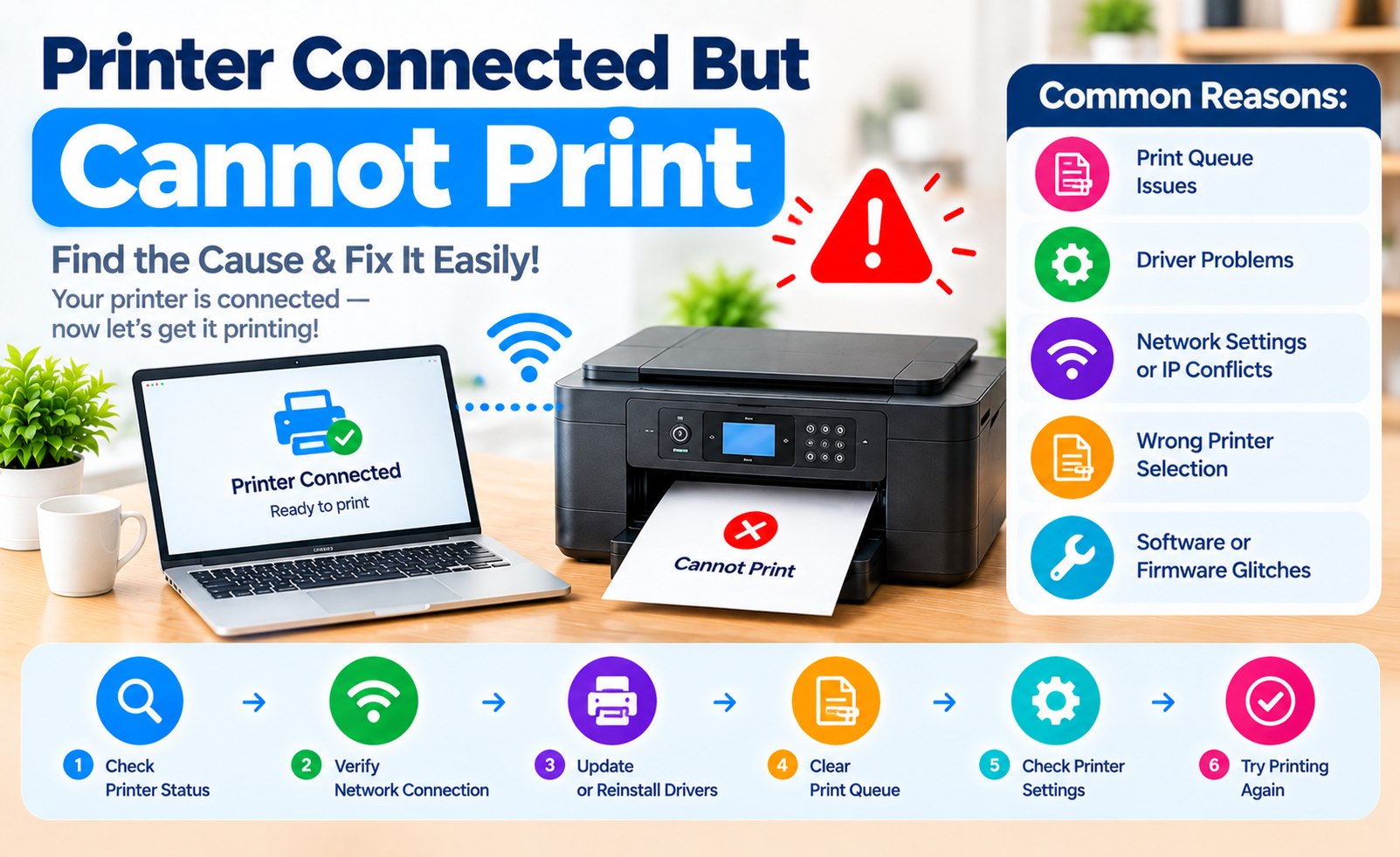
Printer Connected but Cannot Print: Complete Troubleshooting Guide
Seeing your printer listed as connected but nothing comes out when you send a print job can be confusing. A printer may appear online and correctly connected to your computer while a separate problem prevents the document from printing.
The cause can range from a paused print queue or incorrect default printer to an outdated driver, paper problem, low ink or toner, communication issue, or a printer setting that needs attention.
This guide explains practical steps you can follow when your printer is connected but not printing. The steps apply broadly to Windows PCs, Macs, USB printers, and many wireless printer configurations.
Why Is My Printer Connected but Not Printing?
A connected printer only confirms that your computer or network can recognize the printer. It does not always mean that the printer is ready to process a print job.
Common causes include:
- A document is stuck in the print queue.
- The wrong printer is selected.
- The printer is paused or set to offline mode.
- The printer has no paper or has a paper jam.
- Ink or toner is too low or unavailable.
- The printer driver is outdated or incorrectly installed.
- A wireless network connection is unstable.
- The printer is showing an error on its control panel.
Step 1: Check the Printer's Display and Status
Start with the printer itself before changing settings on your computer. Look at the printer's display, indicator lights, or control panel for any messages.
Messages related to paper, ink, toner, cartridge installation, covers, maintenance, or connectivity can prevent a printer from processing new jobs.
If the printer displays an error, resolve that issue first and then try printing again.
Step 2: Make Sure the Correct Printer Is Selected
Computers can have several printers installed at the same time. Your document may be sent to a different printer, a virtual printer, or an old printer that is no longer connected.
Before printing, open the print dialog and check the selected printer name carefully.
Select the printer that is currently connected and available, then send the document again.
A printer can appear connected while a different printer is selected as the destination for your document.
Printing Tip
Printer Setup Guide
Step 3: Check the Printer Paper
A printer may remain connected to your computer even when it cannot physically complete a print job.
Open the paper tray and make sure the correct paper size is loaded properly. Check for sheets that may have shifted, curled, or become stuck inside the paper path.
If the printer reports a paper-size mismatch, select a matching paper size in the print settings or load the paper size requested by the printer.
Step 4: Check Ink or Toner
Low or depleted ink or toner can prevent some printers from completing a print job. Check the printer's cartridge or toner status from the printer display or its software.
If a cartridge is empty, incorrectly installed, or not recognized, follow the printer manufacturer's instructions for checking or replacing it.
Step 5: Clear the Print Queue
A stuck document can prevent newer print jobs from being processed. If several documents are waiting in the queue, one failed job may block everything behind it.
Open your computer's printer settings and view the current print queue.
- Open the printer settings.
- Select the connected printer.
- Open the print queue.
- Review documents currently waiting to print.
- Cancel jobs that are stuck or no longer needed.
- Send a new test print.
Step 6: Check Whether the Printer Is Paused or Offline
Some operating systems provide options that can pause printing or temporarily use the printer offline.
Open the printer's queue and status settings and check whether printing has been paused or whether an offline mode is enabled.
If the printer is intentionally set to offline mode, return it to normal online operation and try the print job again.
Step 7: Restart the Printer and Computer
Temporary communication or software problems can sometimes prevent a printer from processing a job even though the device appears connected.
Save your work, cancel any unnecessary print jobs, and restart the computer. Turn the printer off, wait a short time, and turn it back on.
After both devices restart, allow the printer to finish its startup process before sending another document.
Step 8: Check the Printer Driver
The printer driver is responsible for communication between your operating system and the printer. A damaged, outdated, or incompatible driver can cause printing problems even when the printer is detected.
Check whether the correct driver or printer software is installed for your specific printer model and operating system.
If the printer was recently moved to another computer or upgraded to a different operating system, reviewing the printer software installation can be especially useful.
Step 9: Check a Wireless Printer Connection
If you are using a wireless printer, check whether the printer and computer are still communicating through the same network.
- Confirm that Wi-Fi is enabled on the printer.
- Check the printer's network status.
- Make sure the computer is connected to the intended network.
- Check whether the printer has recently changed its network connection.
- Move the printer closer to the wireless router if the signal appears weak.
If the printer recently received a new Wi-Fi password or the router was replaced, the printer may need to be connected to the updated network again.
Step 10: Check a USB Printer Connection
For a USB-connected printer, inspect the cable and connections between the printer and computer.
Disconnect and reconnect the USB cable securely. If possible, check whether another compatible USB port works with the printer.
If the printer disappears from the computer after reconnecting the cable, review the printer driver and device settings.
Step 11: Print a Test Page
A test page can help determine whether the issue is related to the printer itself or a particular application or document.
Use the printer settings on your computer to send a test page. If the test page prints successfully but one specific application does not print, the problem may be related to that application or document.
Why Does My Printer Print a Blank Page?
A printer that feeds paper but produces blank pages has a different type of problem from a printer that does not respond at all.
Possible causes include low or empty ink, an incorrectly installed cartridge, clogged print nozzles, unsuitable print settings, or a problem with the document itself.
Check the printer's ink or toner status and use the maintenance options available for your specific model when appropriate.
What If the Printer Works From Another Device?
If the same printer successfully prints from another computer or mobile device, the printer hardware and basic connection may be working correctly.
In that situation, focus on the device that cannot print. Check its selected printer, print queue, driver, application settings, and operating system printer configuration.
Common Printer Problems to Check
Before reinstalling the entire printer, review these common conditions:
- Printer is connected but paused.
- Wrong printer is selected.
- Print queue contains a stuck document.
- Printer has no paper.
- Paper is jammed.
- Ink or toner needs attention.
- Printer driver needs to be updated or reinstalled.
- Wireless printer has lost its network connection.
- USB connection is not working correctly.
- The selected application has its own printing issue.
When Should You Reinstall the Printer?
Reinstalling a printer should generally be considered after basic checks have been completed. Removing and adding the printer again can refresh its configuration when the existing installation has become inconsistent.
Before reinstalling, make sure you know the printer model and have access to the appropriate setup software or driver for your operating system.
Quick Printer Troubleshooting Checklist
- Check the printer display for error messages.
- Confirm paper is loaded correctly.
- Check ink or toner status.
- Select the correct printer.
- Clear stuck documents from the print queue.
- Make sure the printer is not paused or offline.
- Restart the printer and computer.
- Check the printer driver.
- Verify the wireless or USB connection.
- Print a test page.
Conclusion
When a printer is connected but cannot print, the connection itself may not be the actual problem. A blocked print queue, incorrect printer selection, paper or ink issue, driver problem, or printer setting can prevent a successful print job.
Start with the printer's status and physical condition, then check the selected printer, print queue, connection, and driver. Testing the printer with a simple test page can also help identify where the problem is occurring.
Because printer menus and software vary between brands and models, some troubleshooting options may use different names on your device.
Related Printer Setup Guides
Add Comment


Comments
Printer Troubleshooting Guide
Printer Setup InformationHave a printer that is connected but still not printing? Share your question or troubleshooting experience in the comments.